Originally published on 7 January 2021.
Many organisations restrict access to Office 365 services and applications from unmanaged or non-compliant endpoints through the use of Azure AD conditional access policies. In addition to these traditional conditional access policies, Cloud Apps Security (CAS) extends these capabilities with additional features, including custom block messages and custom alerts surfaced from within the CAS administration portal.
CAS policies are broken down into session policies (those which affect web browser sessions) and access policies (those which affect desktop applications). They are applied to access attempts against Office 365 applications and services such as Microsoft OneDrive for Business, Microsoft Exchange Online, Microsoft SharePoint Online, and Microsoft Teams. The typical function of these policies is to either monitor or block access or access attempts.
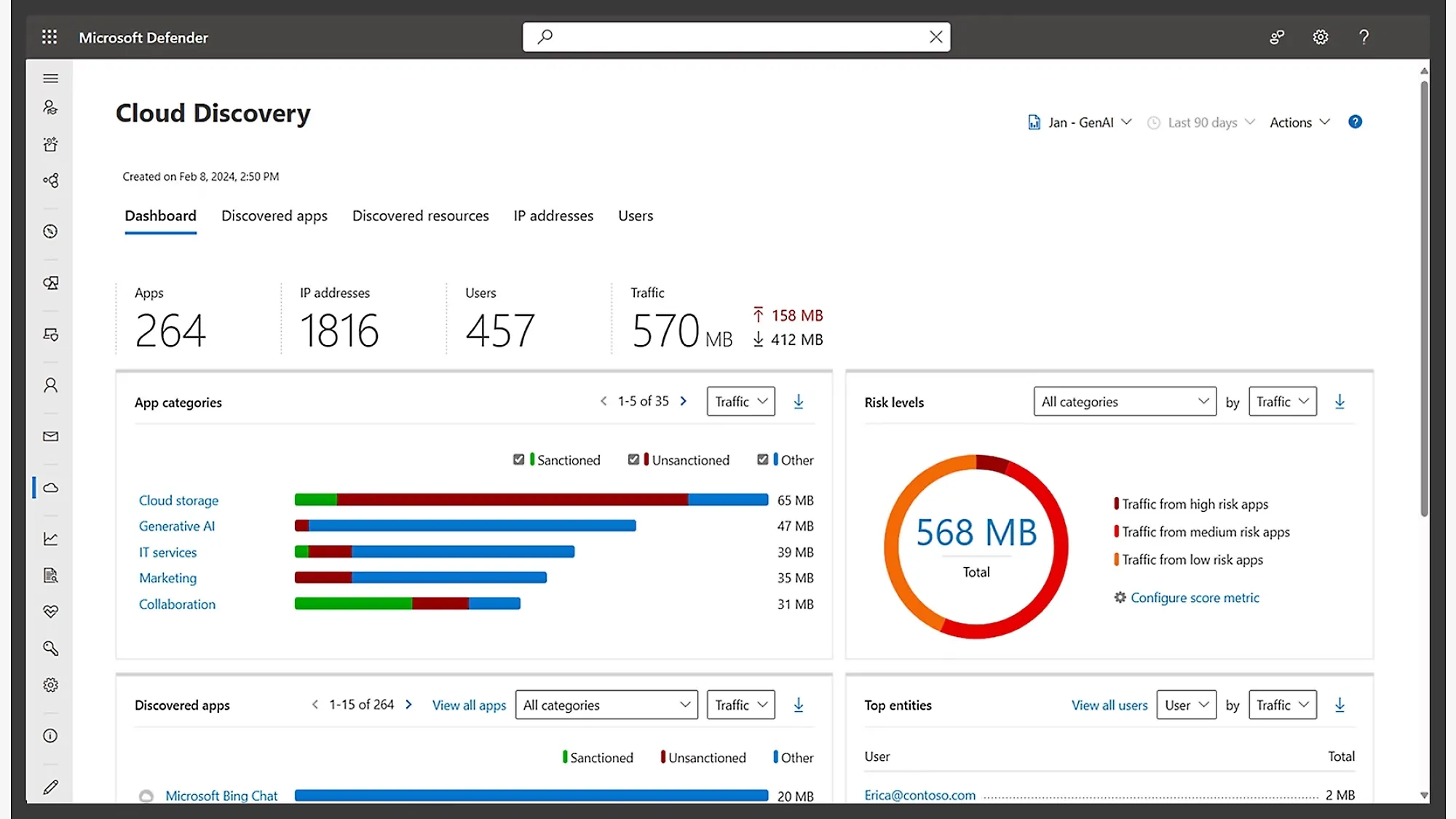
Figure 1. The Cloud Discovery dashboard in Microsoft Defender.
Why use it
Whilst CAS conditional access policies provide similar functionality to traditional Azure AD conditional access policies, there are some feature differences which may make them more appealing:
- The dialogue displayed when an attempt to access a restricted resource is more user friendly than the traditional messaging.
- The message displayed when access is blocked may be customised. Unfortunately the number of characters you can use is limited, however it does allow you to put in a brief descriptive message.
- Several alerting options exist, including the ability to extend further with email notifications or Power Automate, which are surfaced from the Cloud App Security portal. These alerts are simple to enable and surface useful details about the session or access request.
In this article I will provide an overview of how to enable a Cloud Apps Security access policy restricting access from Office desktop applications accessing Office 365.
Before you start
Before you deploy a CAS conditional access policy, several tasks must be completed so that you’re presented with the correct configuration options:
- Create an Azure AD conditional access policy. It is required to capture the access request during authentication and redirect the session to Cloud App Security.
- Register the app as a connected app. You cannot configure an Office 365 application or service, such as Exchange Online, as part of a CAS conditional access policy unless it is registered as a CAS connected app. So, only after you have deployed the Azure AD conditional access policy above, sign into the Office 365 application or service you want to register.
What users see
The following example blocks access from an unmanaged Windows 10 endpoint when attempting to access an Office 365 service via a desktop application, such as Outlook.
When Cloud Apps Security receives a sign in meeting the criteria to block access, for this example when attempting to use an Office 365 desktop application to access Exchange Online, the notification is more informative, because Cloud Apps Security allows customisation of the message displayed.
For this example the message is customised to include:
“You are attempting to access Office 365 from a desktop PC that does not meet your organisation’s compliance requirements.”
The notification displayed by an Azure AD conditional access policy is not as user friendly as a Cloud Apps Security access policy. However, selecting more details does provide additional troubleshooting information which may be beneficial for the service desk.
Configuring Azure AD conditional access
Before enabling the Cloud Apps Security access policy, an Azure AD conditional access policy must be deployed to re-route requests to Cloud Apps Security.
Create a new Azure AD conditional access policy with the following configuration:
- Users and groups: include whoever should be affected by this policy. As a best practice, add your break glass account(s) to the exclude list.
- Cloud apps or actions: include “All cloud apps”.
- Conditions: no configuration settings enabled.
- Grant: no configuration settings enabled.
- Session: “Use Conditional Access App Control” enabled and configured as “Use custom policy”.
When the custom policy option is enabled, the following message is displayed:
“Custom policies need to be configured in Cloud App Security portal. This control works instantly for featured apps and can be self onboarded for any app. Click here to learn more about both scenarios.”
Configuring the Cloud Apps Security access policy
Check the connected apps
Before you create the access policy, make sure the application you want to control appears under “Conditional Access App Control apps” in “Connected apps”. To do this:
- Sign into https://portal.cloudappsecurity.com.
- Expand Investigate, select Connected apps, then Conditional Access App Control apps. A list of connected apps is displayed, for example Office 365 General, Microsoft SharePoint Online - General, or Microsoft Teams - General. If the application you want to control is displayed, skip ahead to creating the policy. Otherwise, continue with the next steps.
- Make sure the Azure AD conditional access policy is enabled and targeting the account you will use for the next steps.
- Open a web browser and sign into https://outlook.office.com. Repeat this for any other applications you want to control, for example https://teams.microsoft.com.
- Repeat steps 1 and 2, and check that the Microsoft applications you signed into in step 4 now appear under Conditional Access App Control apps. Once they show, they can be configured as part of the access controls.
Create the access policy
From the Cloud Apps Security portal, expand Control, then Policies. Click the Create policy drop-down and select Access policy. Then configure the following settings:
| Setting | Value |
|---|---|
| Policy name | Custom - Block Desktop Apps - Non Intune Compliant |
| Policy severity | Low severity |
| Category | Access control |
| Description | MCAS policy blocking Office 365 desktop applications when opened from a non-Intune compliant PC or other device. |
| Activities matching all of the following | ‘Device tag’ does not equal ‘Intune compliant’ ‘App’ equals ‘Microsoft Online Services’ ‘Client app’ equals ‘Mobile and desktop’ ‘Device Type’ equals ‘PC, Other’ |
| Actions | Block, and select Customize block message |
| Alerts | Enable “Create an alert for each matching event with the policy severity” |
If required, the rule can be further scoped to specific users or groups.
For the custom block message, use:
“You are attempting to access Office 365 from a desktop PC that does not meet your organisation’s compliance requirements.”
Enabling the alert setting lets you review the alerts generated by this policy.